 HyperDesk
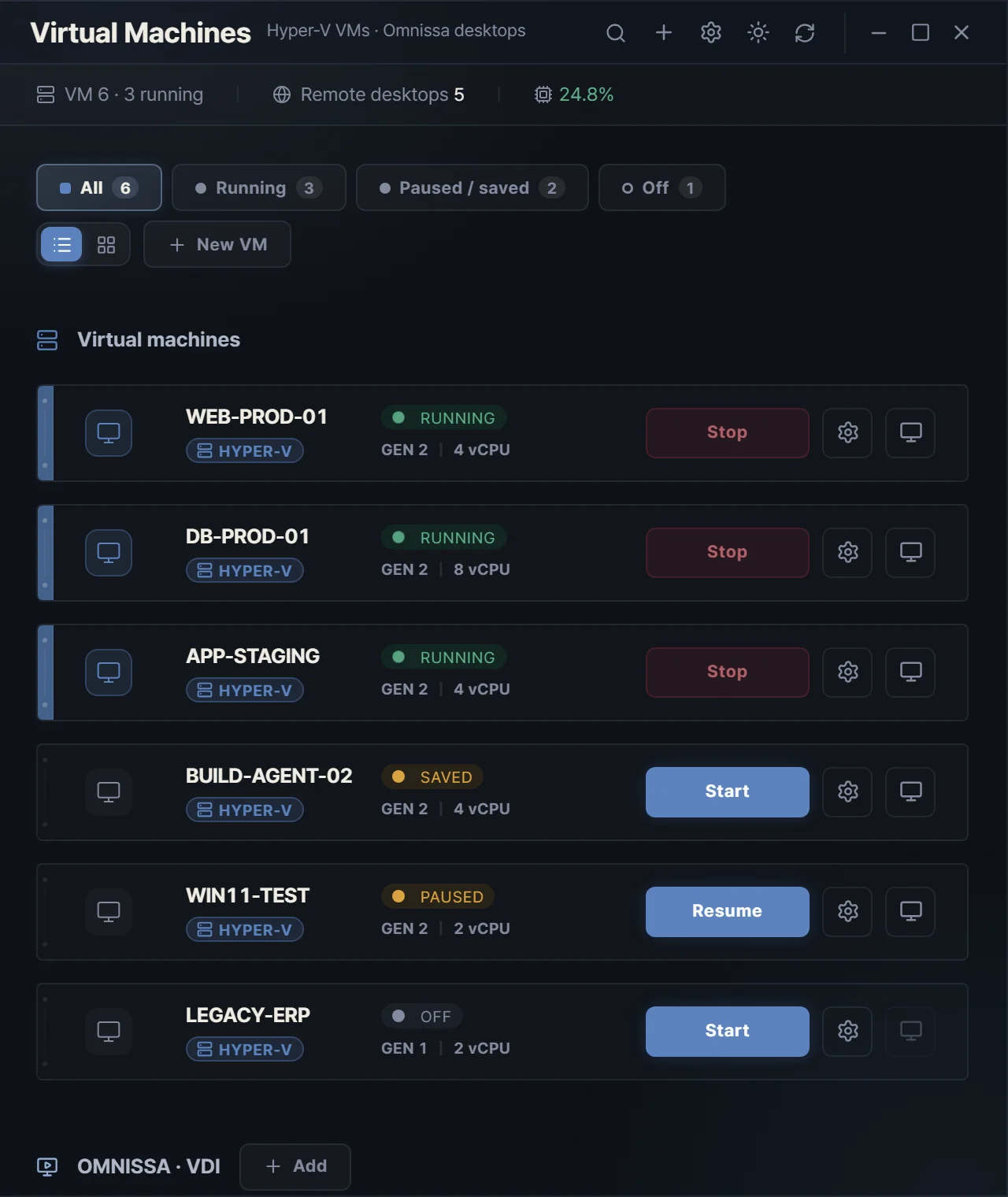
Starts, stops and pauses VMs
Start, stop, save or pause from the list, and change memory and processor count in each VM's settings.
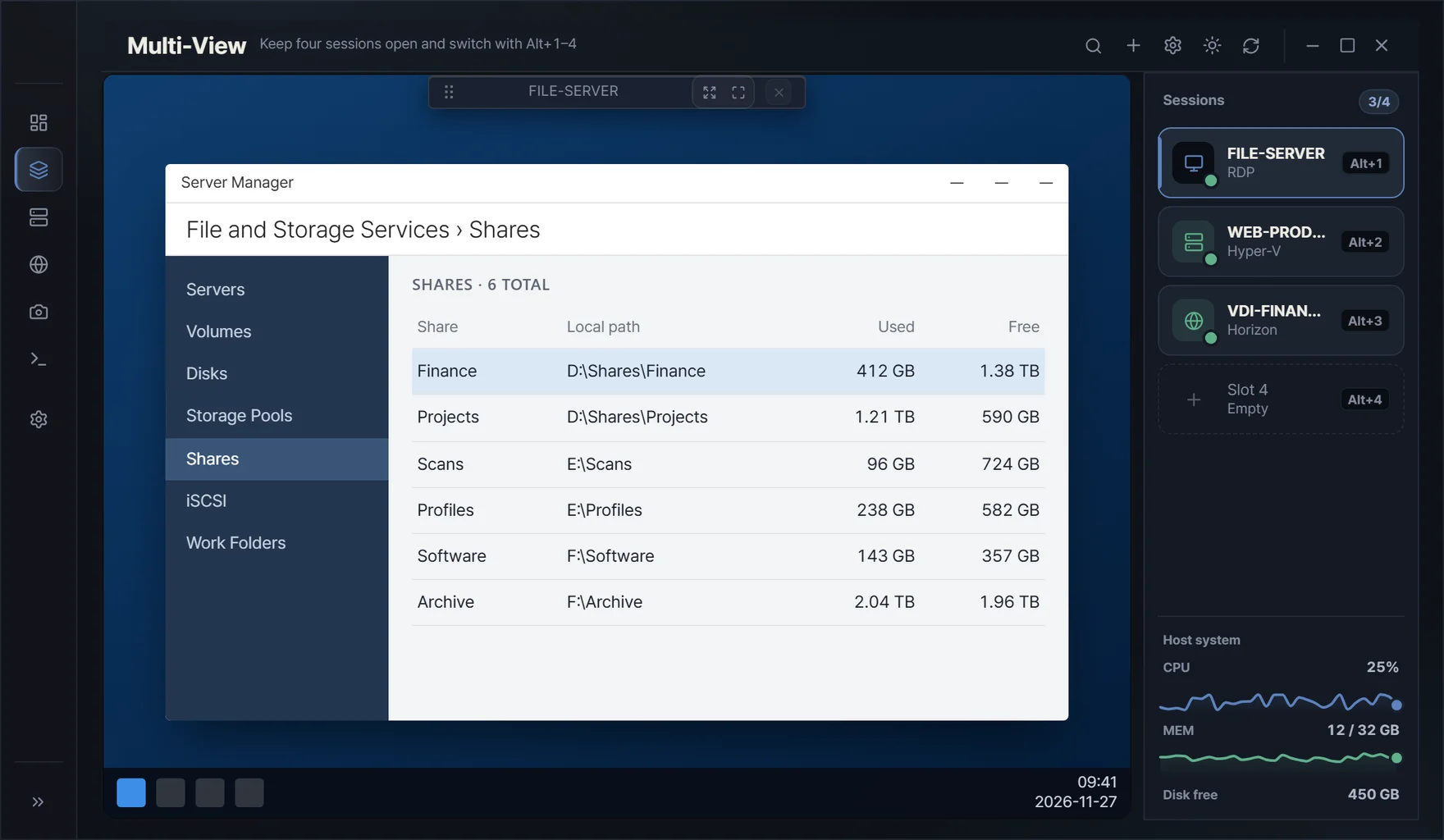
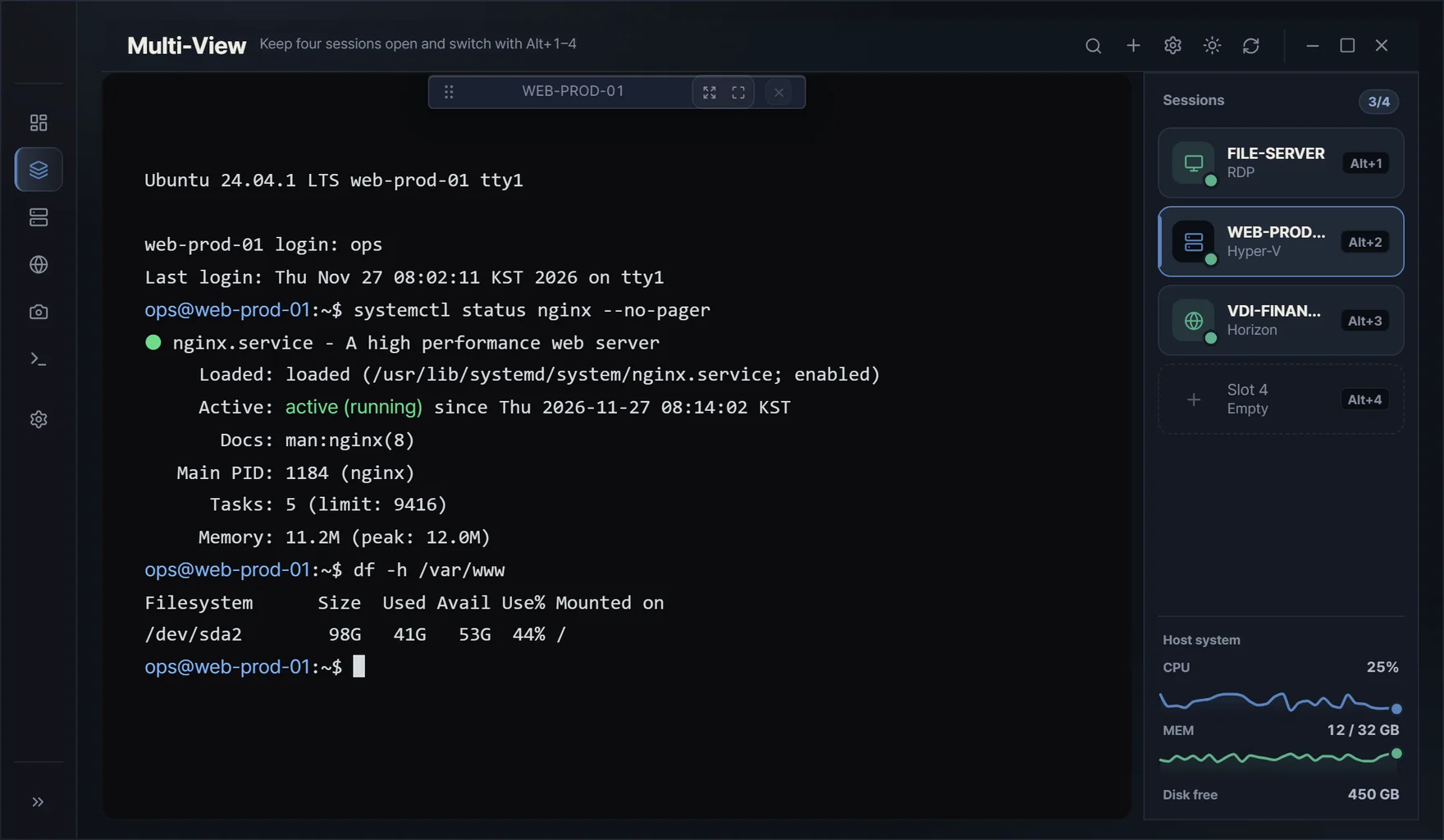
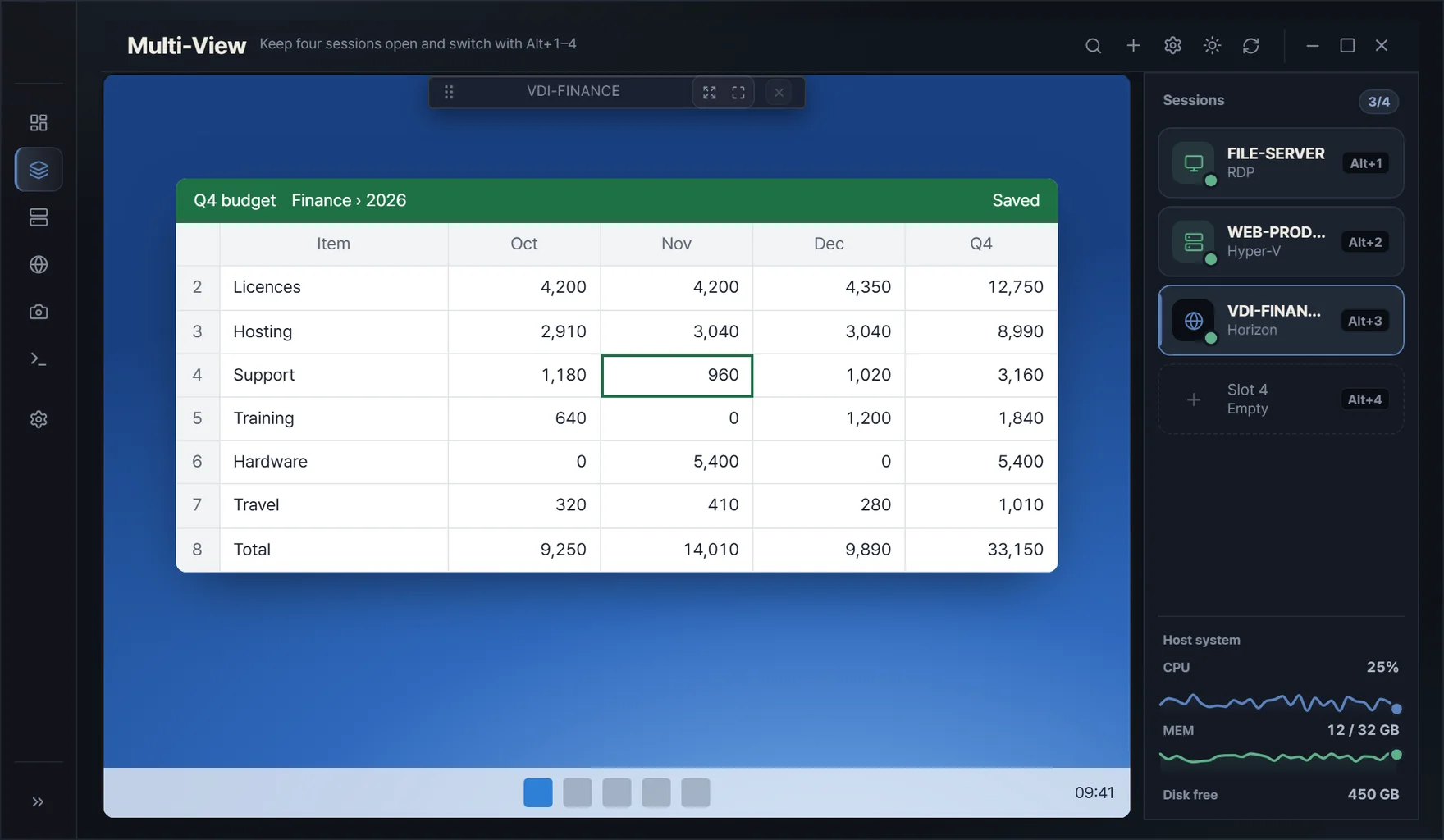
Keep four remote sessions open and switch with Alt+1 to 4. The rest stay connected in the background. Free on the Microsoft Store.
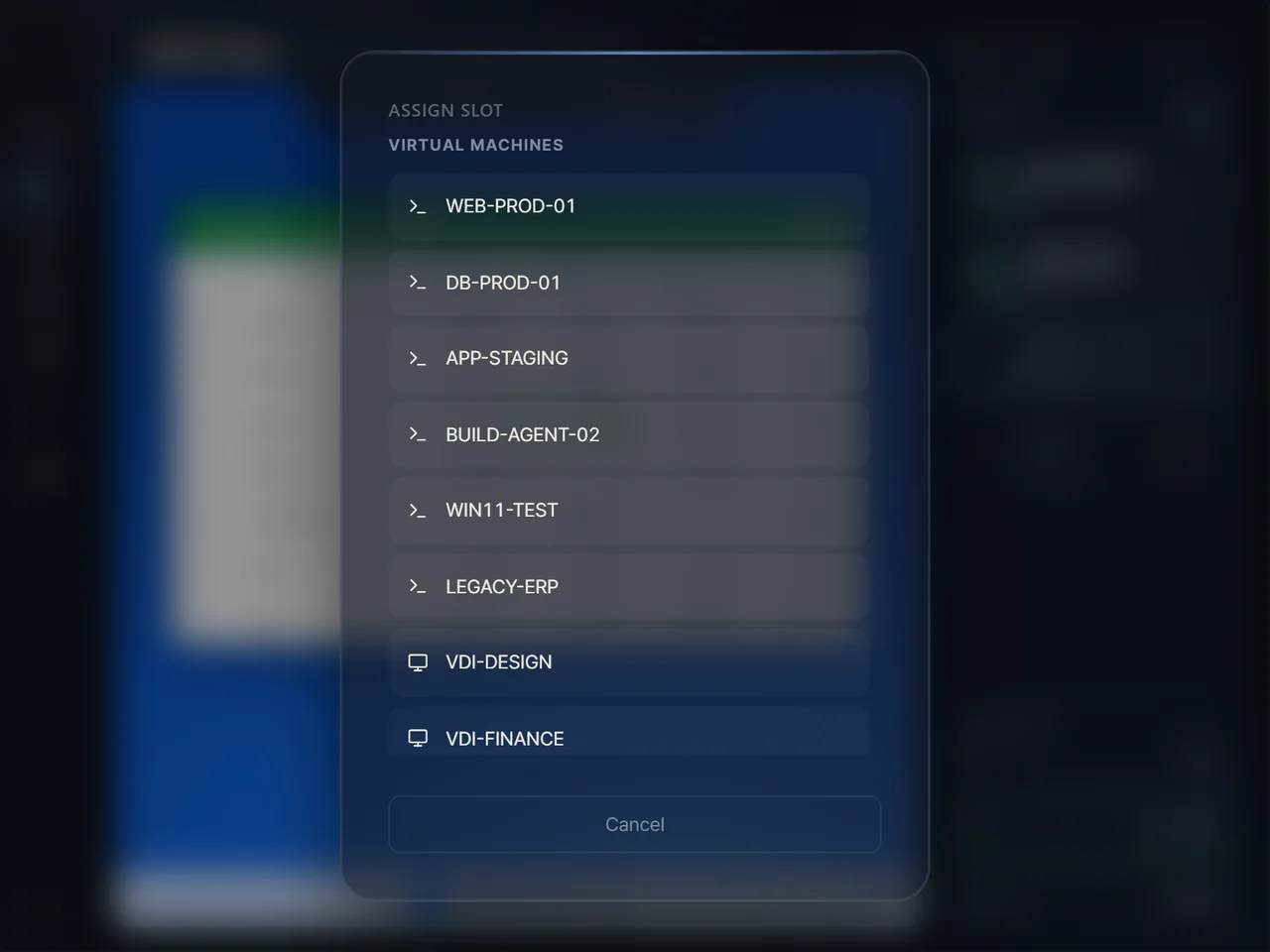
Choose a Hyper-V VM, a Remote Desktop host or a Horizon desktop for slots 1 to 4. HyperDesk docks its real client window.
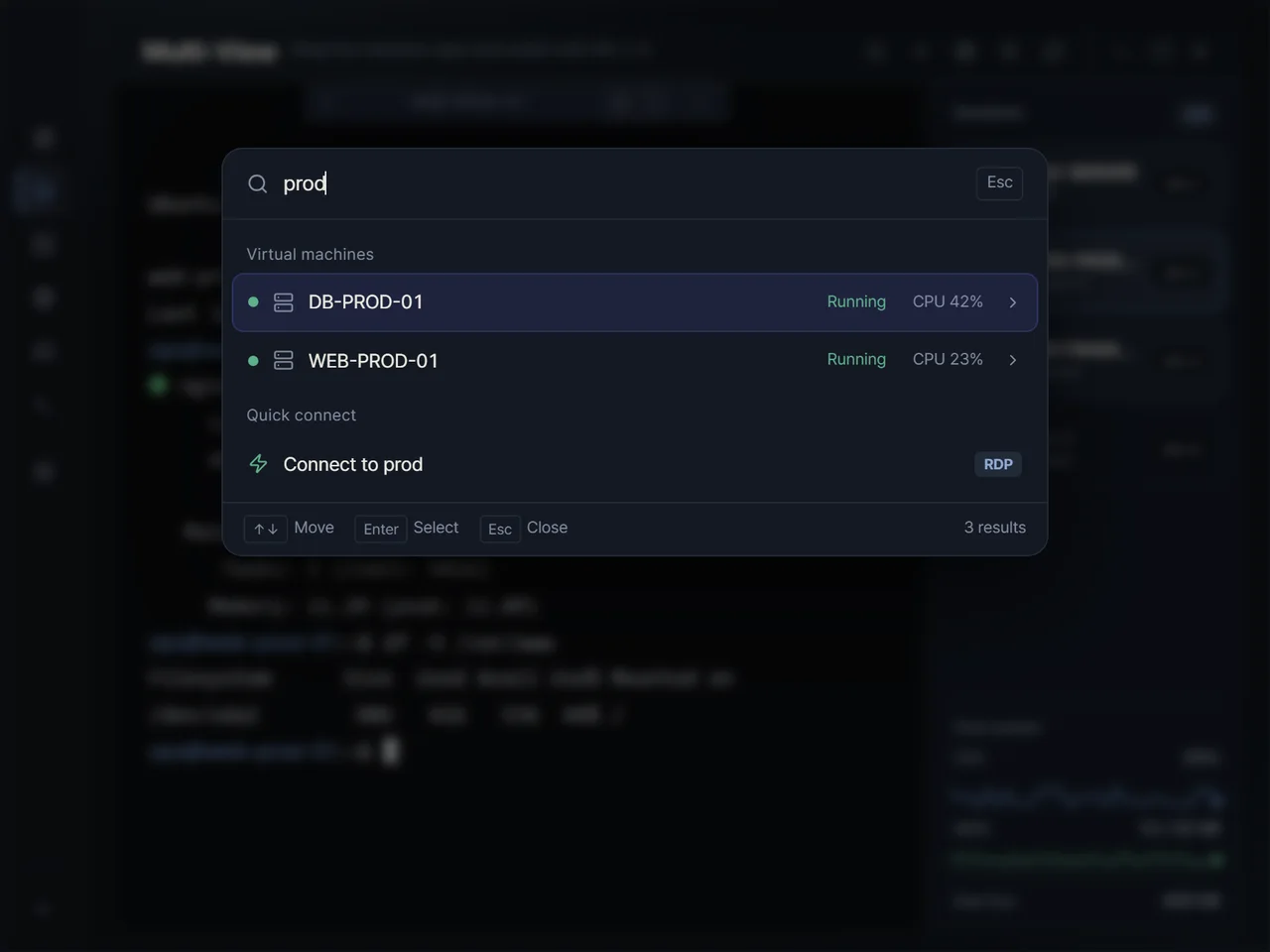
Type part of a name or a tag. The palette lists the matching VMs and hosts and connects to the one you pick.
The session fills the view at once and nothing reconnects. In VM full screen it takes the whole monitor, and the floating header still switches slots.
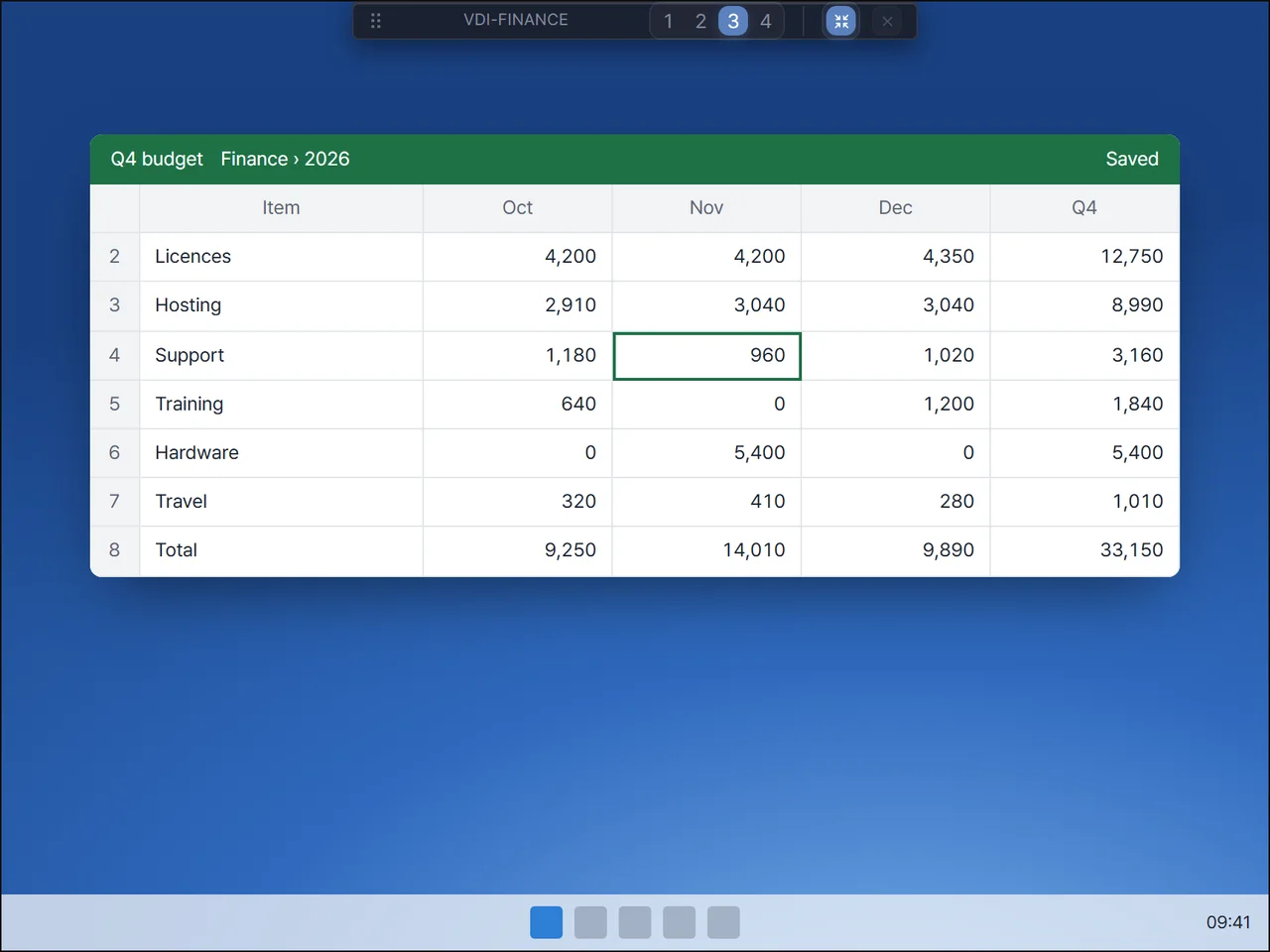
Each slot holds the real Remote Desktop Connection, Hyper-V Virtual Machine Connection or Horizon Client window, never a stream or a screenshot.
Start, stop, save or pause from the list, and change memory and processor count in each VM's settings.
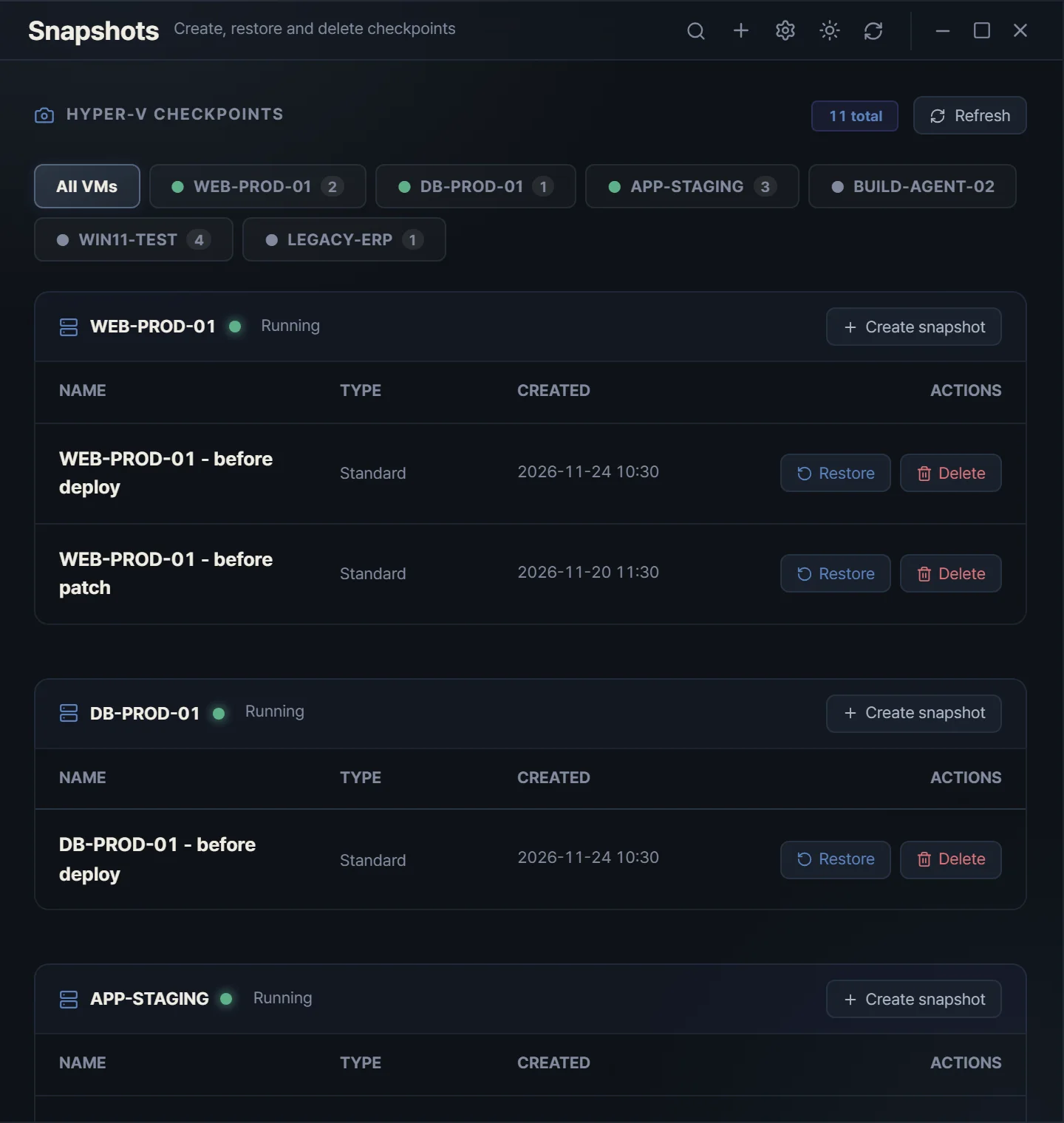
Take a checkpoint before a patch and roll it back from the same screen, one VM at a time.
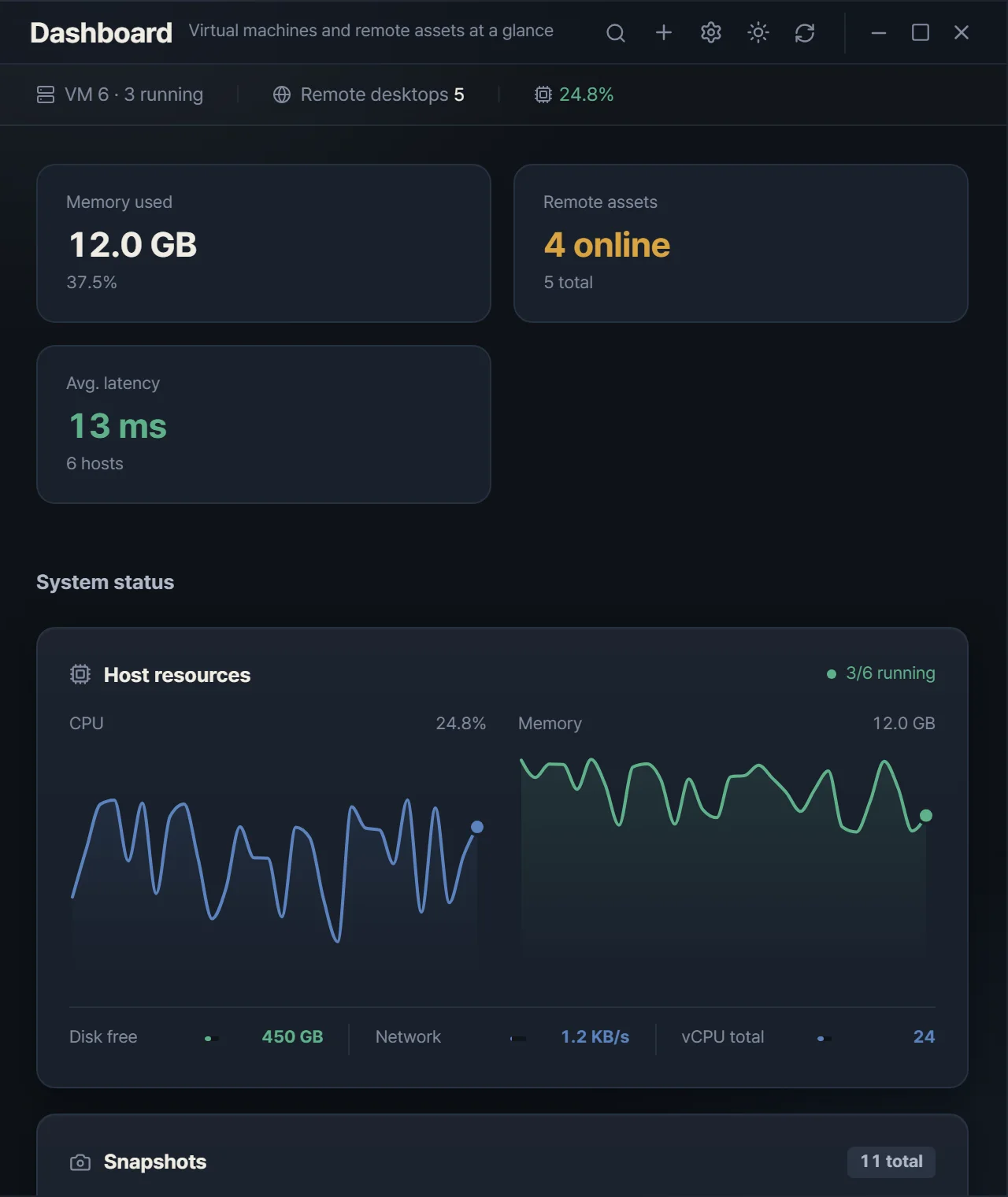
CPU, memory, disk and network for the host, next to every VM's state and snapshot count.
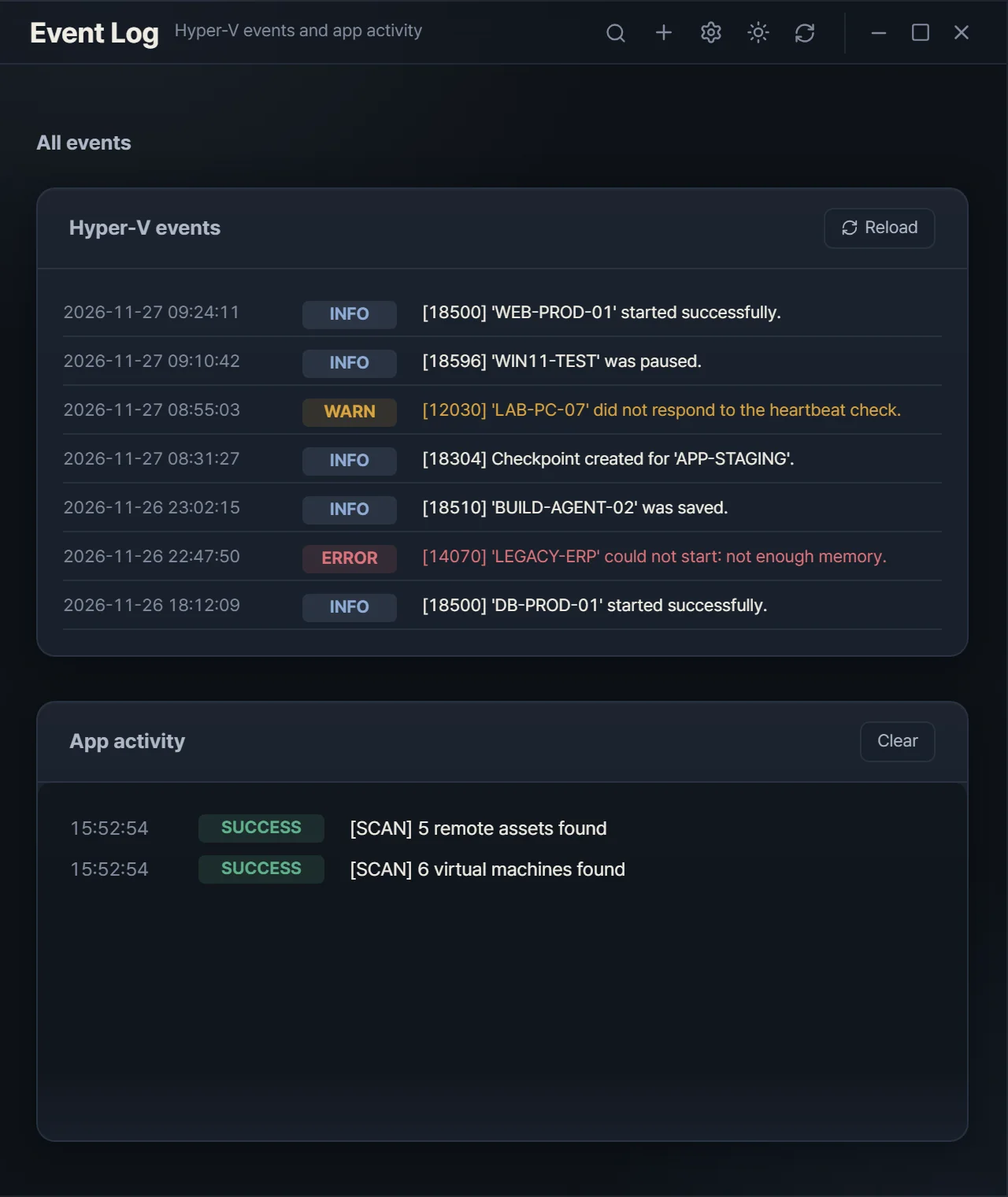
Errors and warnings from the VMMS log, newest first, without opening Event Viewer.
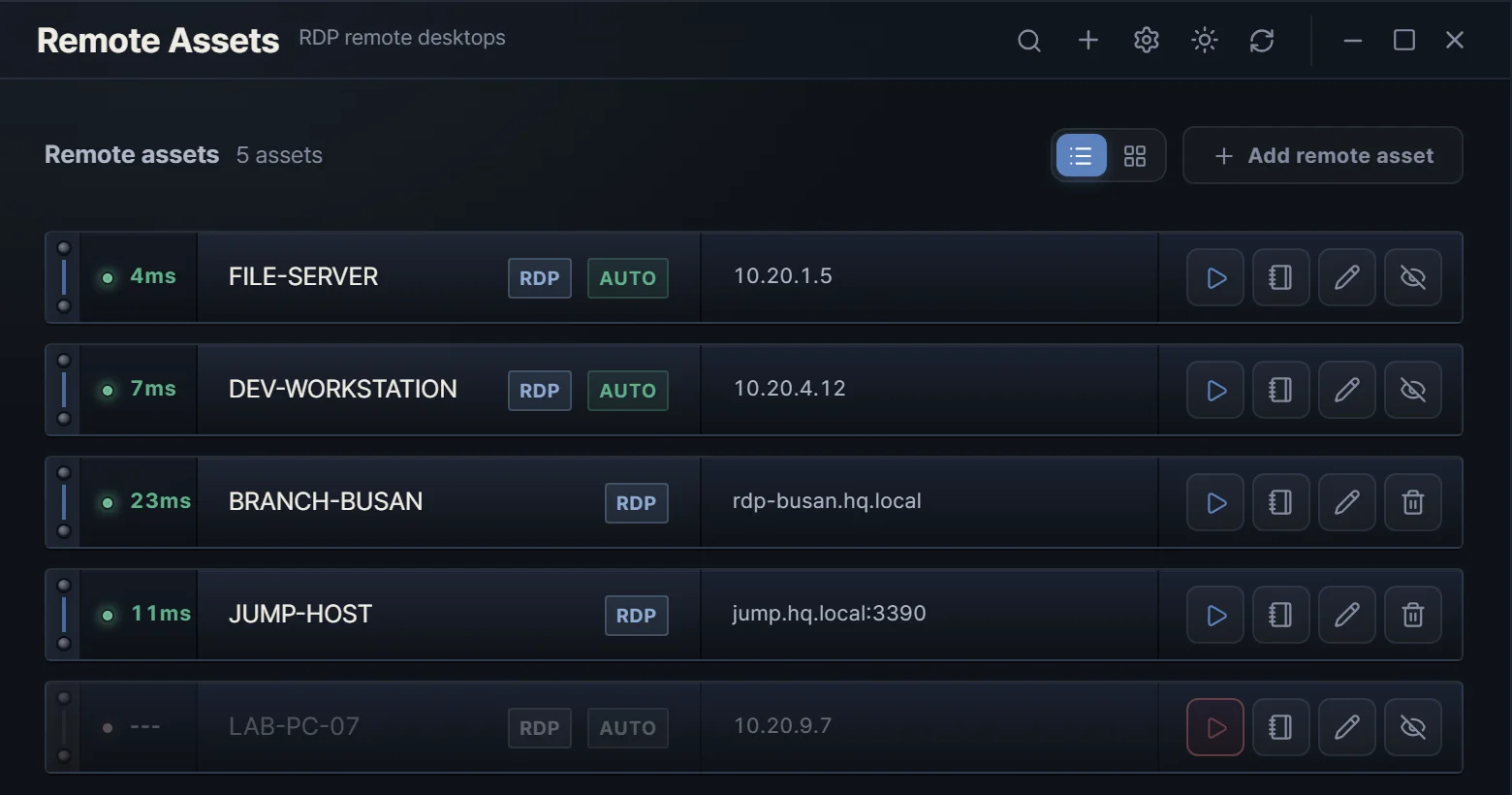
HyperDesk reads your Remote Desktop history and Horizon servers and lists them beside the hosts you add, each with its latency.
HyperDesk is free and open source under the MIT license.


Windows 10 (1809 or later) or 11. Managing VMs needs Hyper-V and the Hyper-V Administrators group; Horizon needs its client.
No, it runs as your normal user. A console opened from Hyper-V Manager run as administrator can't be docked; close it first.
No. It collects no usage data and stores no passwords, so it works on closed networks. The Microsoft Store delivers updates.
Each session keeps its full size and resolution. You switch with a key instead of reading four small screens.